Setup
Connect Claude Desktop to your notes over MCP
Download the Knowtarium extension, open it in Claude Desktop and ask Claude to connect Knowtarium: your browser opens so you can approve this computer and pick the notes Claude may reach. No terminal needed. Every change Claude makes is signed as its own and can be undone in one click, and your notes stay end-to-end encrypted.
By Fadel Kaadan · Updated
What Claude can do once it's connected
Knowtarium is an end-to-end encrypted knowledge base that people and their own AI agents work in. Claude Desktop, the Claude app for your computer, connects to it over MCP, through a small program that runs on your computer and unlocks your notes there. Once it's connected, you can ask Claude in any chat to:
- Find and read your notes, follow the links between them and find related notes, in the workspace and folders you gave it.
- Write and edit notes. Each change is saved at once, signed as Claude's and kept in the history, so you can see what it did and undo it in one click.
- Follow your folder instructions. What you write for a workspace or folder in the app (its
AGENTS.md) reaches Claude wherever it reads and writes there. It can only suggest changes to those instructions, never make them. - Wait for you where you want it to. Turn on review ("Ask me first") for a workspace or folder, and Claude's note changes there wait for you to approve or reject them. Folder changes there are refused instead, and Claude tells you what it would change.
- Move or delete notes and change folders, only if you gave it those permissions, and it's told to do this only when you ask in your conversation.
It can't reach a workspace or folder you didn't give it, sign as you, mark a note as checked by you, or skip review where you turned it on. The full list is on the agents page.
What Anthropic sees
Our servers only ever hold your notes encrypted, so we can't read them. Knowtarium unlocks them on your computer and hands Claude only what it asks for. Whatever Claude reads goes to Anthropic, like anything else you share in a chat, so connect it only to the notes you'd share with it. How the encryption works is on the security page.
Set it up with the Knowtarium extension
This is the easiest way, and the one we recommend. You don't need a terminal or Node.js, only Claude Desktop and a free Knowtarium account.
- Download the extension. Get knowtarium.mcpb, the latest version. It comes from Knowtarium's open-source code on GitHub, and each release lists its checksums if you want to check the file.
- Open it. Double-click the file, and Claude Desktop offers to install the extension. It shows the extension's name, icon, tools and support links before you install it. If Claude Desktop doesn't open the file, go to its settings, under Extensions, and install it from there.
- Ask Claude to connect Knowtarium. Start a chat and type something like the line below. Claude opens Knowtarium in your browser.
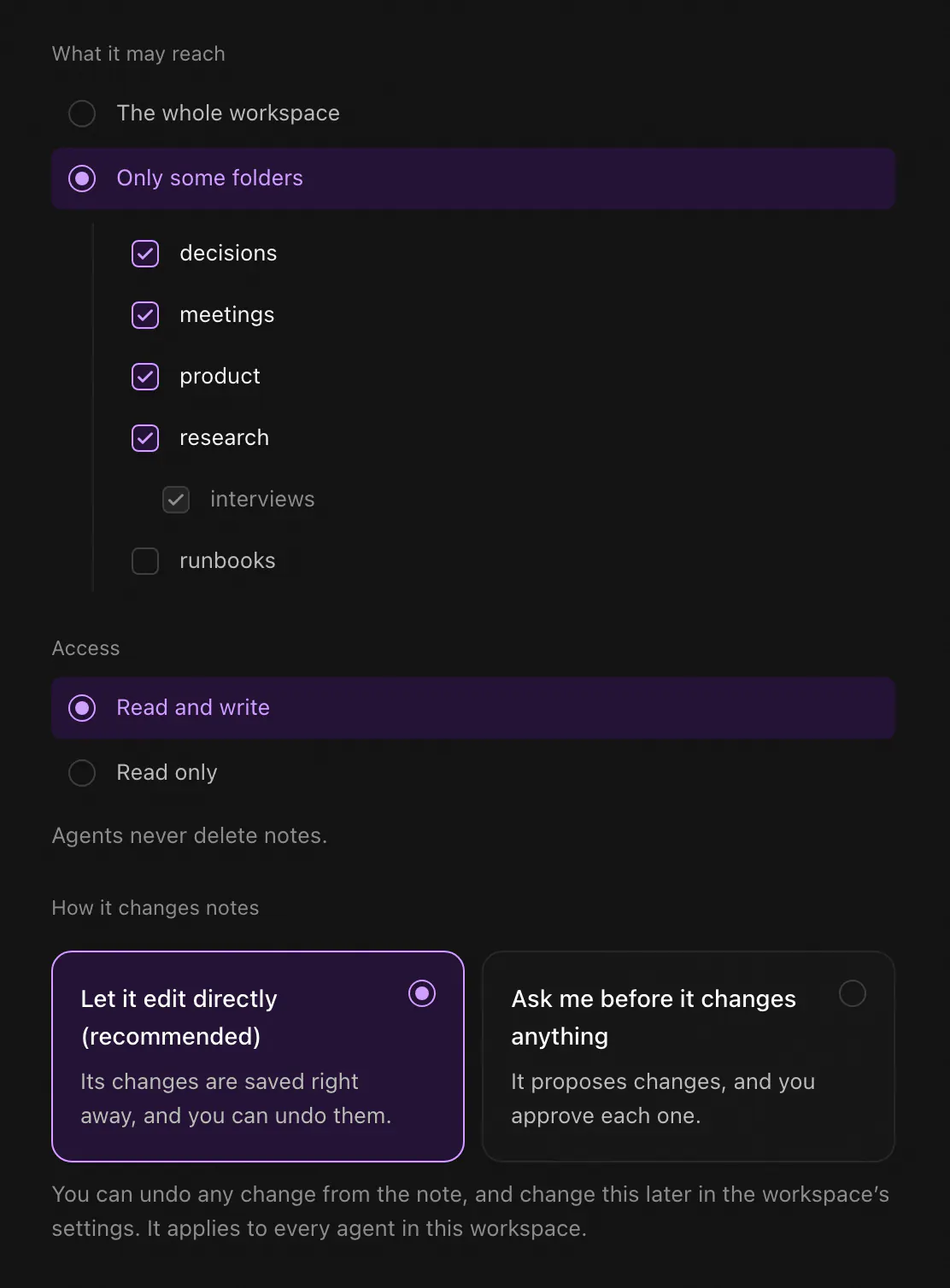
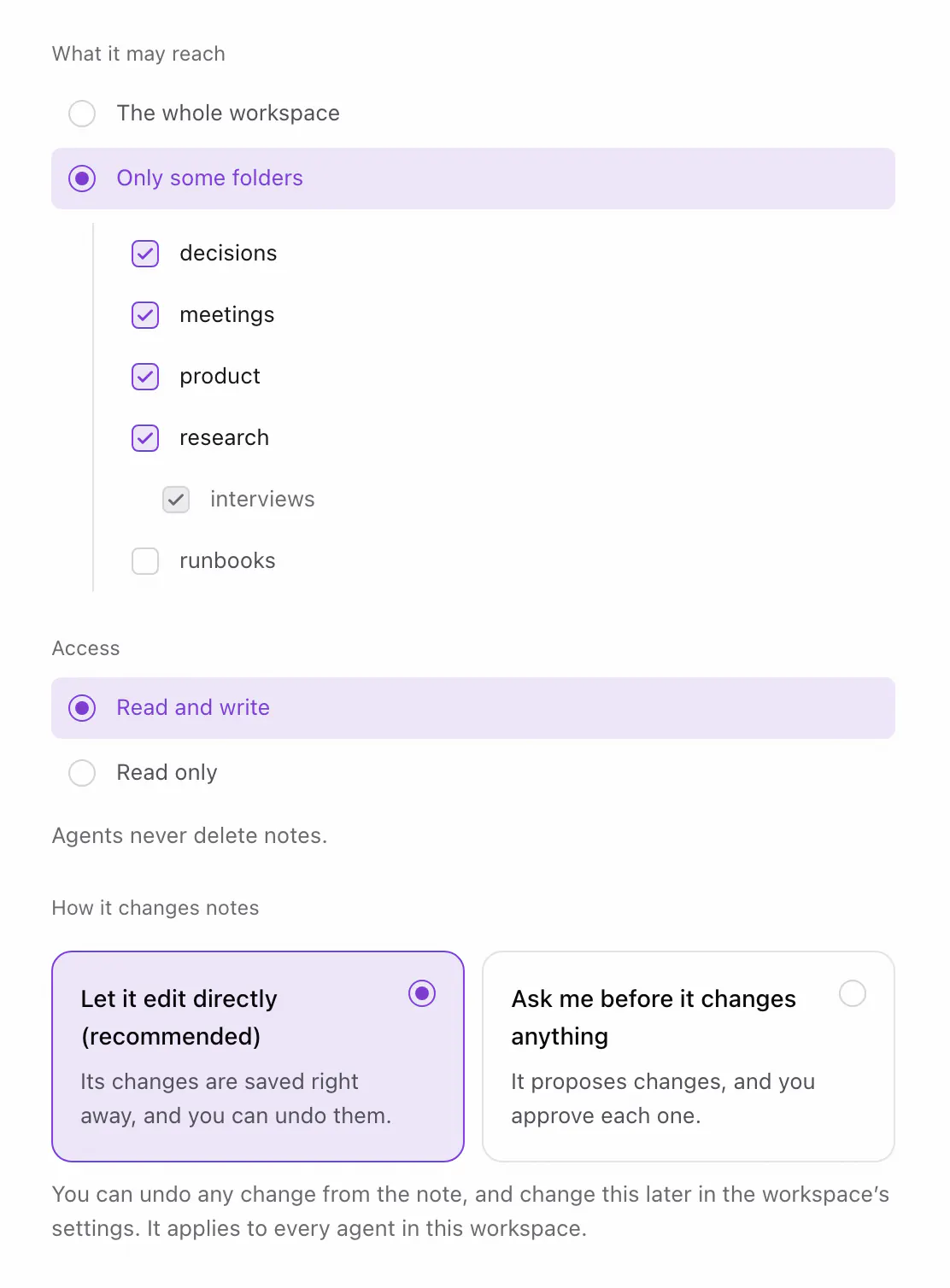
- Approve this computer. In the browser, name the agent, pick what Claude can reach (see below) and click Allow. Then go back to the chat and tell Claude you're done: it checks that you approved and lists your workspace. From then on, every chat can use your notes.
> Connect Knowtarium and list my workspaces
The approval page is shared with the terminal setup, so it mentions a command and your terminal. That's Claude Desktop asking: continue if you just asked Claude to connect. If your browser asks whether the page may reach devices on your local network, allow it.
No password, token or key goes in Claude's settings. The connection is stored encrypted on your computer, with its key in your system keychain, where there is one. If this computer is already connected (you ran before), the extension uses that connection and there's nothing to approve. If you ran it with Claude Desktop ticked, you already have Knowtarium in Claude Desktop and don't need the extension.
 (opens full size in a new tab)
 (opens full size in a new tab)
Or use npx knowtarium connect
If you're happy in a terminal, one command connects this computer and adds Knowtarium to Claude Desktop and the other agents it finds, such as Claude Code or Cursor. You need Node.js 20 or later (22 or 24 recommended). Run it from your home folder: npx trusts the folder it runs in, so running it inside a project would let that project's files stand in for Knowtarium's.
Opening the browser to connect this computer to Knowtarium.Connected to workspace ws_8f2k (read and write).Add Knowtarium to which agents? Claude Desktopadded to Claude Desktop (/Users/you/Library/Application Support/Claude/claude_desktop_config.json)
- Approve this computer in the browser page that opens, as with the extension.
- Pick the agents. The command lists the agents it finds, all ticked. Press Enter to add Knowtarium to all of them, or untick some first (arrows move, space toggles).
- Claude Desktop gets its entry. The command adds Knowtarium to Claude Desktop's settings file,
claude_desktop_config.json, and leaves your other settings as they are. It backs up the previous file next to it. - Quit Claude Desktop fully and open it again. Closing the window isn't enough: on a Mac, choose Claude, Quit Claude, or press Cmd+Q; on Windows, right-click the Claude icon in the system tray (next to the clock) and choose Quit.
The settings file it changes is in Claude Desktop's own folder:
| System | Folder |
|---|---|
| macOS | ~/Library/Application Support/Claude |
| Windows | %APPDATA%\Claude, or the Microsoft Store version's own copy when that's the one you installed |
| Linux (unofficial builds) | ~/.config/Claude |
To see what the command would change before it writes anything, run . The command is open source: the code is on GitHub.
Pick one
Use the extension or the command for Claude Desktop, not both, or Claude Desktop runs Knowtarium twice. The command can't tell the extension is installed, so it ticks Claude Desktop anyway. If you installed the extension, untick Claude Desktop when the command lists your agents, or run , which connects this computer and leaves every agent's settings alone. If you already did both, remove the extension in Claude Desktop's settings, under Extensions.
Choose what Claude can reach
The page that opens in your browser decides what this connection can do. Everything is scoped to the one agent, and our server enforces it:
- One workspace. Each connection reaches exactly one.
- Some folders, if you like. Tick only the folders Claude needs. It also reads the instructions of the folders above them, but can't suggest changes to those.
- Read or read-write. Start read-only if you only want answers from your notes.
- More than editing, only if you tick it. Moving notes, deleting notes, and creating, renaming, moving or deleting folders are six separate permissions, each off by default.
You can change all of it later in the app under Settings, Agents, and each time you sign the new set. Revoke Claude there and it's shut out at once, and the workspace gets a new key, so it can't read anything written after that.
To give Claude a second workspace, run from your home folder (this one needs Node.js), pick the other workspace, then quit and reopen Claude Desktop. The first connection stays.
Claude's memory and your knowledge base
Claude can already remember things from your chats, and a project in Claude holds files you add to it. That memory lives in your Claude account, and only Claude uses it. It's good for how you like to work with Claude. It's not a good home for the knowledge itself: decisions, research, meeting notes and the facts you, your team and your other AI tools rely on.
That's what the knowledge base is for. Your notes stay yours, as plain markdown you can export, and every agent you connect sees the same notes. Claude looks things up there and writes down what it learns, and you can see and undo each change. Our AI second brain guide covers the idea in more detail.
In Knowtarium
Rules for your notes go in the workspace's own instructions, an AGENTS.md you write in the app, which Claude and every other connected agent follow. Our guide to AGENTS.md for knowledge bases has a template to start from.
Prompts to try first
You don't need special commands: ask in plain words and Claude picks the right tools. It helps to say "Knowtarium" or "my notes" so Claude knows where to look. These are good first prompts, from read-only to small, specific edits:
> What can you do in my Knowtarium workspace?> Search my Knowtarium notes for our onboarding processand answer with links to the notes you used.> Read my meeting notes from this week and write a shortsummary as a new note. Don't change the meeting notes.> Add today's call notes to the Acme project note.Change nothing else in it.> What's in my inbox? Suggest one thing to do with each clip.
The first one is a quick check that the connection works: Claude should name the workspace and say whether its changes are saved at once or wait for your approval. The last one reads the pages you saved with the web clipper. Keep early edits small, and say what must not change: it's easier to check four changed notes than forty.
Check and undo what Claude changed
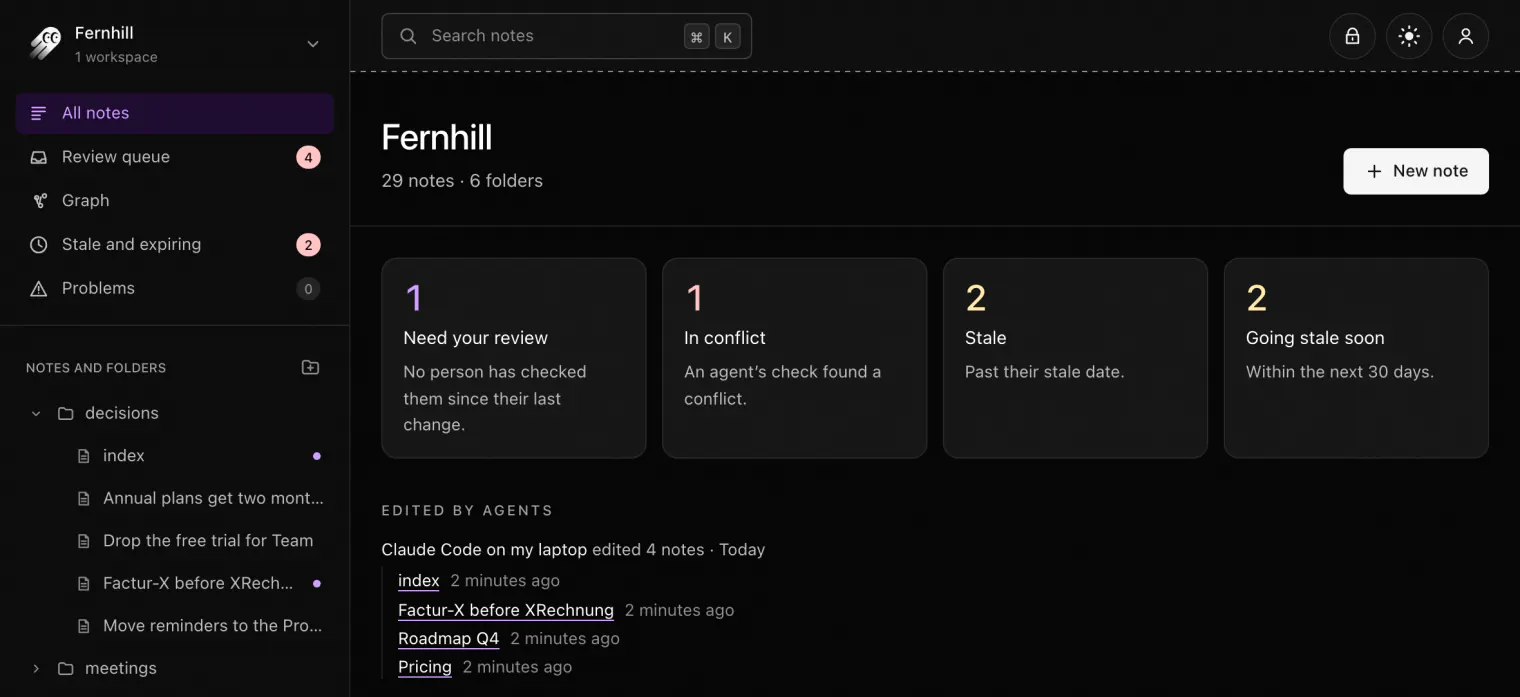
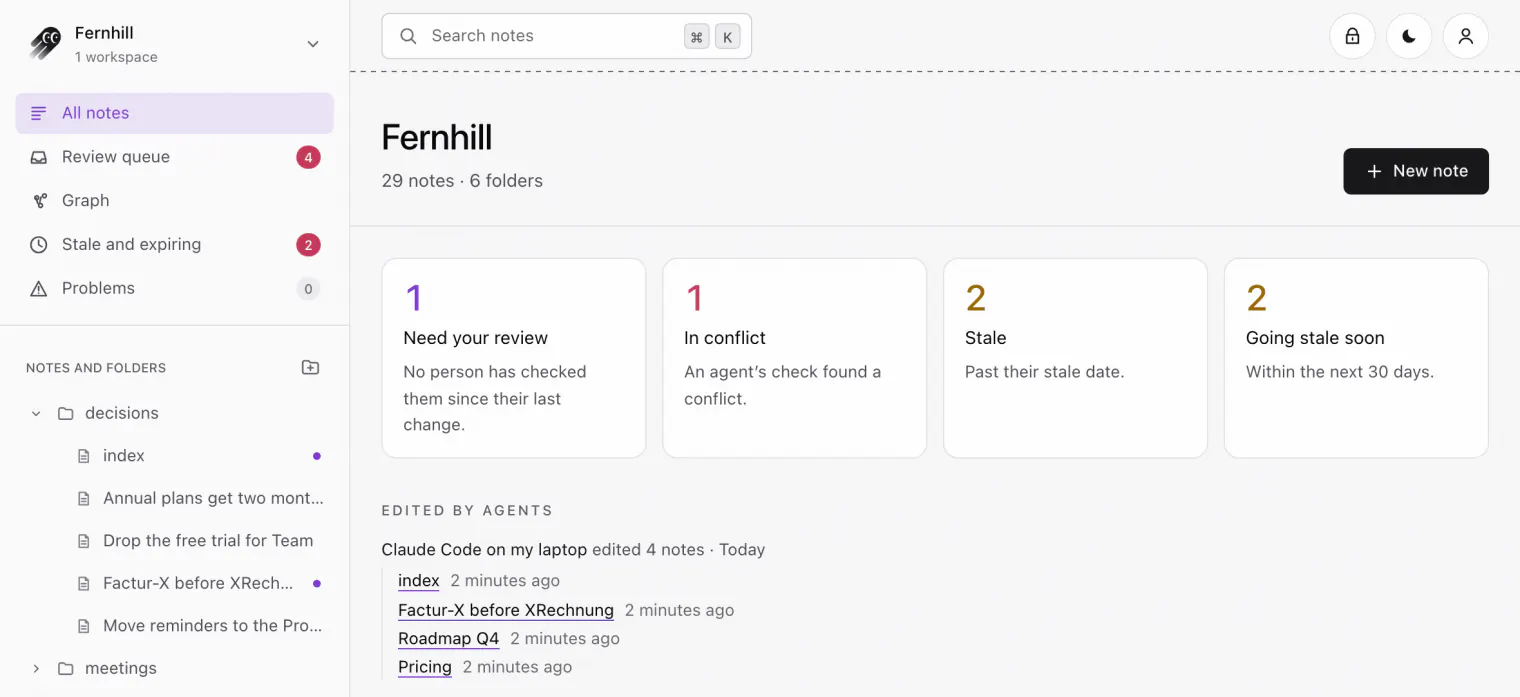
Every change Claude makes is signed with its own key, so you always know which edits were its:
- A dot in the sidebar marks each note it edited until you open it, and the workspace page lists them under Edited by agents.
- Under a note's title, a line says which agent edited it, with See changes to compare and Undo to bring back the version before.
- Deletes, moves and folder changes are listed on the workspace page for two weeks, or your history period if that's shorter, under Deleted and reorganized by agents, with Undo and Undo this agent's last 24 hours. A deleted note comes back while your history period keeps it.
- The history keeps every version for as long as you set, from a day to a year. In folders with review on, changes wait in the review queue instead.
 (opens full size in a new tab)
 (opens full size in a new tab)
Our guide to reviewing agent edits has a routine for checking what an agent changed before you rely on it.
Claude in the browser and on your phone
Knowtarium connects to Claude Desktop on your computer, not yet to claude.ai in the browser or the Claude phone app. Those run only in the cloud, so they need a connector we host, and that comes later.
The reason is the encryption: today your notes are unlocked only on your own computer, by the extension or the command. The hosted connector is planned to unlock them only on a locked-down server running code anyone can check. Until then, use Claude Desktop, or another agent on your computer such as Claude Code.
Troubleshooting
Claude doesn't see Knowtarium
Check that the extension is installed and turned on in Claude Desktop's settings, under Extensions. If you used the command, quit Claude Desktop fully and open it again: it only picks up new settings when it starts.
Claude says Knowtarium isn't connected
Ask Claude to connect Knowtarium, and approve this computer in the browser page that opens. If you closed that page, ask again.
Check the connection
The app lists every connected agent under Settings, Agents, with what each one can reach. In a terminal, shows the connected workspaces, their access, and where the keys are kept.
Knowtarium says to update
With the extension, download knowtarium.mcpb again (the link always gives the latest version) and open it, and Claude Desktop offers to update the installed extension. With the command, run from your home folder. Either way, then quit and reopen Claude Desktop.
Changes wait for approval when you expected them saved
Claude tells you whether each change was saved or suggested, and why. Maybe the folder asks for review, the workspace's settings couldn't be verified, or Claude hit today's limit of direct changes. Or this connection can only suggest changes: run again from your home folder (with --no-agents if you use the extension), then quit and reopen Claude Desktop.
Don't add it by hand
Don't edit Claude Desktop's settings file to add Knowtarium yourself: use the extension or the command. A hand-written entry can start Knowtarium from the wrong folder, where another project's files could stand in for it. Knowtarium isn't in Anthropic's extension directory, so get the extension from the link on this page.
Questions
Does Anthropic see my notes?
Anthropic sees what Claude reads, like anything else you share in a chat. Notes are unlocked only on your computer, and Knowtarium's servers hold them only encrypted, so we can't read them. Connect Claude to only the folders it needs, or read-only, to limit what it can read.
How do I connect Claude Desktop to my notes?
Download the Knowtarium extension (knowtarium.mcpb), open it so Claude Desktop installs it, and ask Claude to connect Knowtarium. Your browser opens so you can approve this computer and pick the notes Claude may reach. No terminal or Node.js needed; the other way, npx knowtarium connect, needs a terminal and Node.js 20 or later.
Does this give Claude Desktop a memory?
Yes, one you can see and control. Claude searches and reads your Knowtarium notes in any chat, and writes down what it learns as notes you can check and undo. The notes stay yours, end-to-end encrypted, and every agent you connect works from the same ones.
Can I use it on claude.ai or the Claude phone app?
Not yet. Those run only in the cloud, so they need a connector we host, which comes later. Today you can connect Claude Desktop, Claude Code, Codex, Cursor, OpenCode and VS Code.
Can Claude delete my notes?
Only if you gave it the permission to delete notes, which is off by default, and it's told to delete only when you asked for it in your conversation. In folders set to Ask me first, a delete waits for your approval. Each delete is listed on the workspace page with Undo, and the note comes back while your history period keeps it.
Is the extension safe to install?
It's built from Knowtarium's open-source code on GitHub, under the MIT license, and each release lists the file's checksums. It runs on your computer, keeps the connection's key in your system keychain, and reaches only what you approved in the browser. It isn't in Anthropic's extension directory, so download it from the link on this page.
Should I use the extension or npx knowtarium connect?
The extension, unless you're comfortable in a terminal. Both run the same Knowtarium server. The command also sets up the other agents it finds, such as Claude Code or Cursor. Use one of them for Claude Desktop, not both.