Setup
Connect Codex to an encrypted knowledge base over MCP
Run from your home folder, approve this computer in your browser and restart Codex: it can then search, read and write the notes you picked, over MCP. Every change it makes is signed as Codex's and can be undone in one click, and your notes stay end-to-end encrypted.
By Fadel Kaadan · Updated
What Codex can do once it's connected
Knowtarium is an end-to-end encrypted knowledge base that people and their own AI agents work in. OpenAI's Codex connects to it over MCP, through a small server that runs on your computer and decrypts notes there. Once it's connected, Codex can:
- Search and read your notes, follow the links between them and find related notes, in the workspace and folders you gave it.
- Create and edit notes. Each change is saved at once, signed with Codex's own key and kept in the history, so you can see what it did and undo it in one click.
- Follow your folder instructions. What you write for a workspace or folder in the app (its
AGENTS.md) reaches Codex wherever it reads and writes there. It can only propose changes to those instructions, never make them. - Wait for you where you want it to. Turn on review ("Ask me first") for a workspace or folder, and Codex's note changes there wait as diffs for you to approve or reject. Folder changes there are refused instead, and Codex tells you what it would change.
- Move or delete notes and change folders, only if you gave it those permissions, and it's told to do this only when you ask in your conversation.
It can't reach a workspace or folder you didn't give it, sign as you, mark a note as checked by you, or skip review where you turned it on. The full list is on the agents page.
What OpenAI sees
Our servers only ever hold your notes as ciphertext. The knowtarium CLI decrypts them on your computer and hands Codex only what its tools return. Whatever Codex reads goes to OpenAI, like anything else you give it, so connect it only to the notes you'd share with it. How the encryption works is on the security page.
Set up the Codex MCP server with npx knowtarium connect
You need Node.js 20 or later (22 or 24 recommended) and a free Knowtarium account. Open a terminal and run the command from your home folder. npx trusts the folder it runs in, so running it inside a project would let that project's files stand in for Knowtarium's.
Opening the browser to connect this computer to Knowtarium.Connected to workspace ws_8f2k (read and write).Add Knowtarium to which agents? Codexadded to Codex (/Users/you/.codex/config.toml)previous file saved as /Users/you/.codex/config.toml.knowtarium-backup-<time>
- Approve this computer. Your browser opens Knowtarium. Name the agent, pick what it can reach (see below) and click Allow, but only if you ran the command yourself. Over SSH, where the browser can't reach the terminal, you confirm a matching code in both places instead.
- Pick the agents. The CLI lists the agents it finds on your computer, all ticked. Press Enter to add Knowtarium to all of them, or untick some first (arrows move, space toggles,
atoggles all, Esc adds none). It finds Codex by its~/.codexfolder. - Codex gets its entry. The CLI adds Knowtarium to Codex's user config,
~/.codex/config.toml(in$CODEX_HOMEwhen you set that), so it's there in every project. It parses the file first and changes only Knowtarium's own table, leaving your other servers, settings and comments as they are, and backs up the previous file next to it. The entry starts the server from your home folder, never from the project Codex has open. - Restart Codex so it picks up the new server: quit any session that was already running and start Codex again.
No password, token or key goes in Codex's config. The connection is stored encrypted, with its key in your system keychain (or a file only you can read where there is none). To see what the CLI would change before it writes anything, run . The CLI is open source: the code is on GitHub.
 (opens full size in a new tab)
 (opens full size in a new tab)
Or install the Codex plugin
The Knowtarium plugin holds the same MCP server, pinned to a tested knowtarium release, and a skill for working in a Knowtarium workspace (knowtarium-conventions). It also needs Node.js 20 or later, and its launcher starts the server from your home folder. In a terminal:
Or, once the marketplace is added, type in Codex to open the plugin browser and install Knowtarium from the knowtarium marketplace. It isn't in OpenAI's public plugin directory, so add the marketplace first.
Then connect this computer once. Ask Codex to connect Knowtarium, and your browser opens so you can approve this computer. Or run the command with --no-agents, from your home folder: the plugin already runs the server, so the flag leaves Codex's config alone.
Plugin or connect command?
| npx knowtarium connect | Plugin | |
|---|---|---|
| What it adds | The server, to Codex and the other agents it finds | The server and the knowtarium-conventions skill, to Codex |
| Connecting this computer | Part of the command | Ask Codex, or |
| Updating | Upgrade the marketplace, then add the plugin again |
Either way, Codex gets the same tools and the same conventions with them. Pick one: the command leaves Codex unticked when it already has the plugin, so its own entry doesn't replace the plugin's server.
Choose what Codex can reach
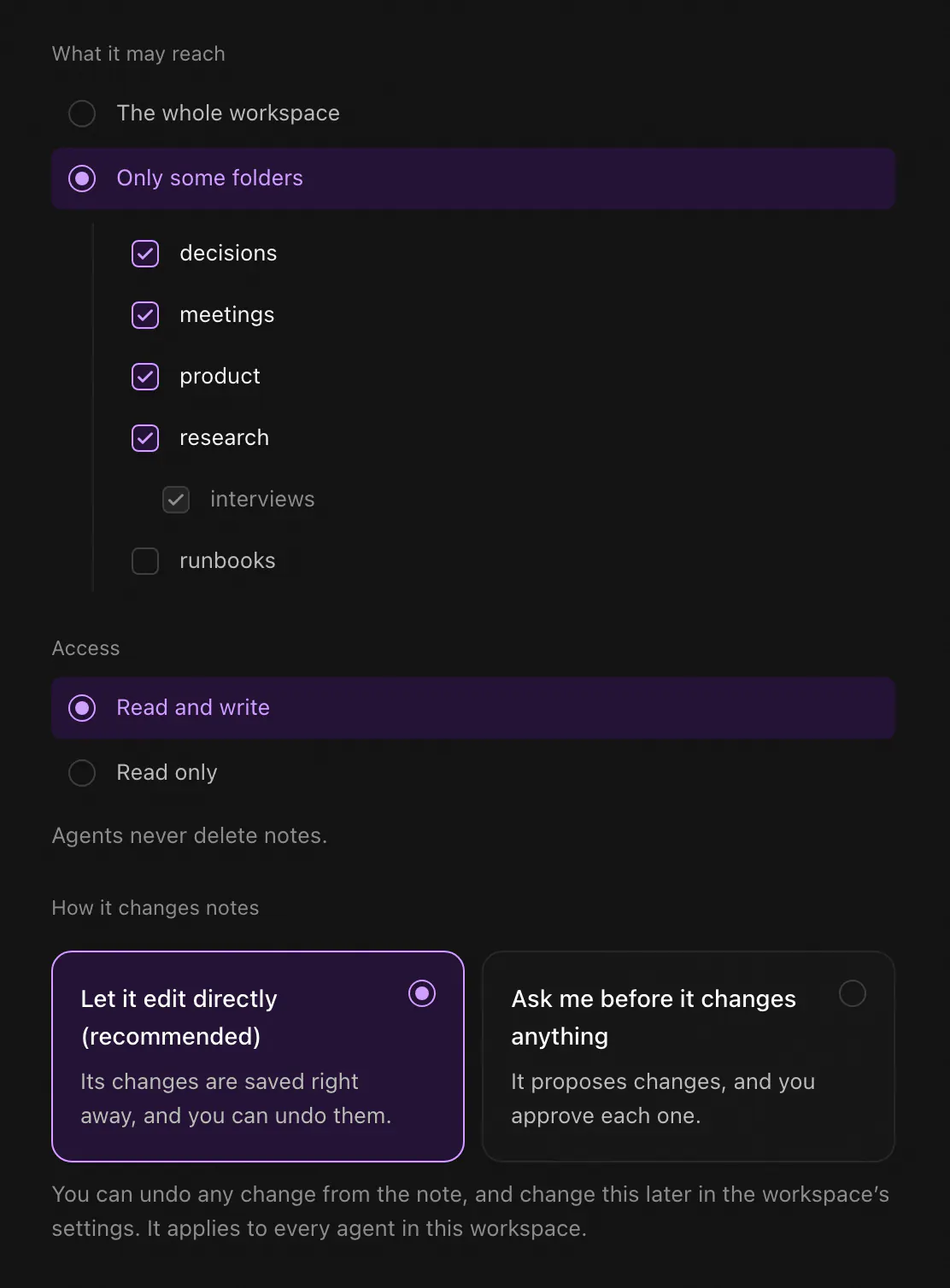
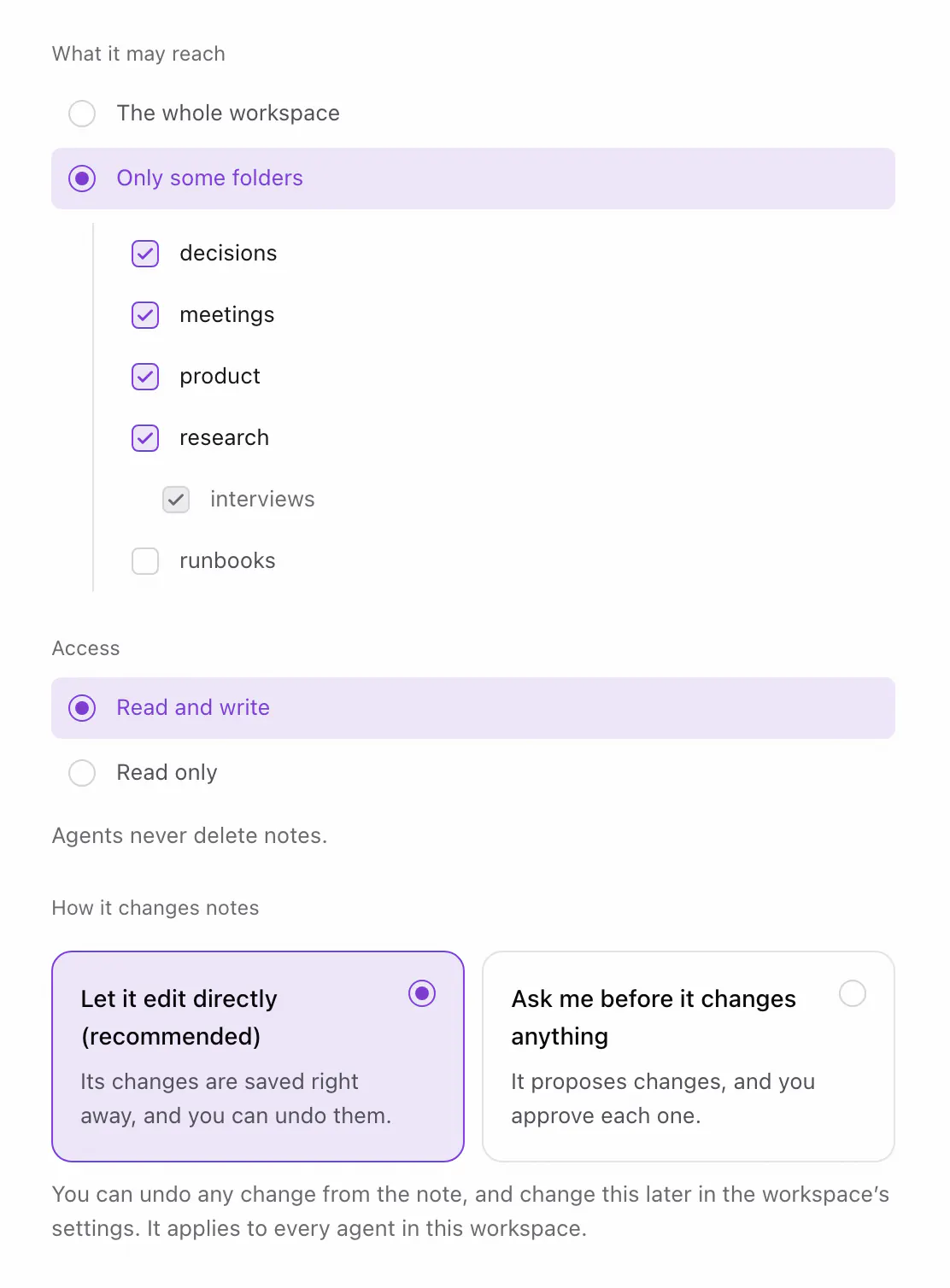
The page the command opens decides what this connection can do. Everything is scoped to the one agent, and the server enforces it:
- One workspace. Each connection reaches exactly one. To give Codex another, run again, pick the other workspace, and restart Codex. The first connection stays.
- Some folders, if you like. Tick only the folders it needs. It also reads the instructions of the folders above them, but can't propose changes to those.
- Read or read-write. Start read-only if you only want answers from your notes.
- More than editing, only if you tick it. Moving notes, deleting notes, and creating, renaming, moving or deleting folders are six separate permissions, each off by default.
You can change all of it later in the app under Settings, Agents, and each time you sign the new set. Revoke Codex there and it's shut out at once, and the workspace gets a new key, so it can't read anything written after that. From the terminal, revokes this computer's access and deletes its local keys and cache.
Codex's memory and your knowledge base
Codex takes its standing instructions from AGENTS.md files: one in ~/.codex for every project, and the ones in the folders between the git root and where you start it (Codex docs). They're good at how to work in a repository. They aren't a good home for the knowledge itself: decisions, research, meeting notes and the facts several agents and people rely on.
That's what the knowledge base is for. Keep your coding rules in Codex's AGENTS.md, and let Codex look up and write down what it learns in Knowtarium, where every other agent you connect sees the same notes, and you can read and edit them in the app. Our Claude Code second brain guide compares how Codex, Cursor and Claude Code read their instruction files.
In Knowtarium
Rules for the notes themselves go in the workspace's own instructions, also called AGENTS.md, but written in the app rather than in your repository. Codex and every other connected agent follow them. Our guide to AGENTS.md for knowledge bases has a template to start from.
Prompts to try first
You don't need special commands: ask in plain words and Codex picks the tools. These are good first prompts, from read-only to small, specific edits:
> What can you do in my Knowtarium workspace?> Search my notes for the pricing decision and answerwith links to the notes you used.> Read the meetings folder and write this week's summaryas a new note. Don't change the meeting notes.> Add today's call notes to the Acme project note.Change nothing else in it.> What's in my inbox? Suggest one thing to do with each clip.
The first one is a quick check that the connection works: Codex should name the workspace and say whether its changes are saved at once or wait for your approval. The last one reads the clips you saved with the web clipper. Keep early edits narrow, and say what must not change: it's easier to review four changed notes than forty.
Check and undo what Codex changed
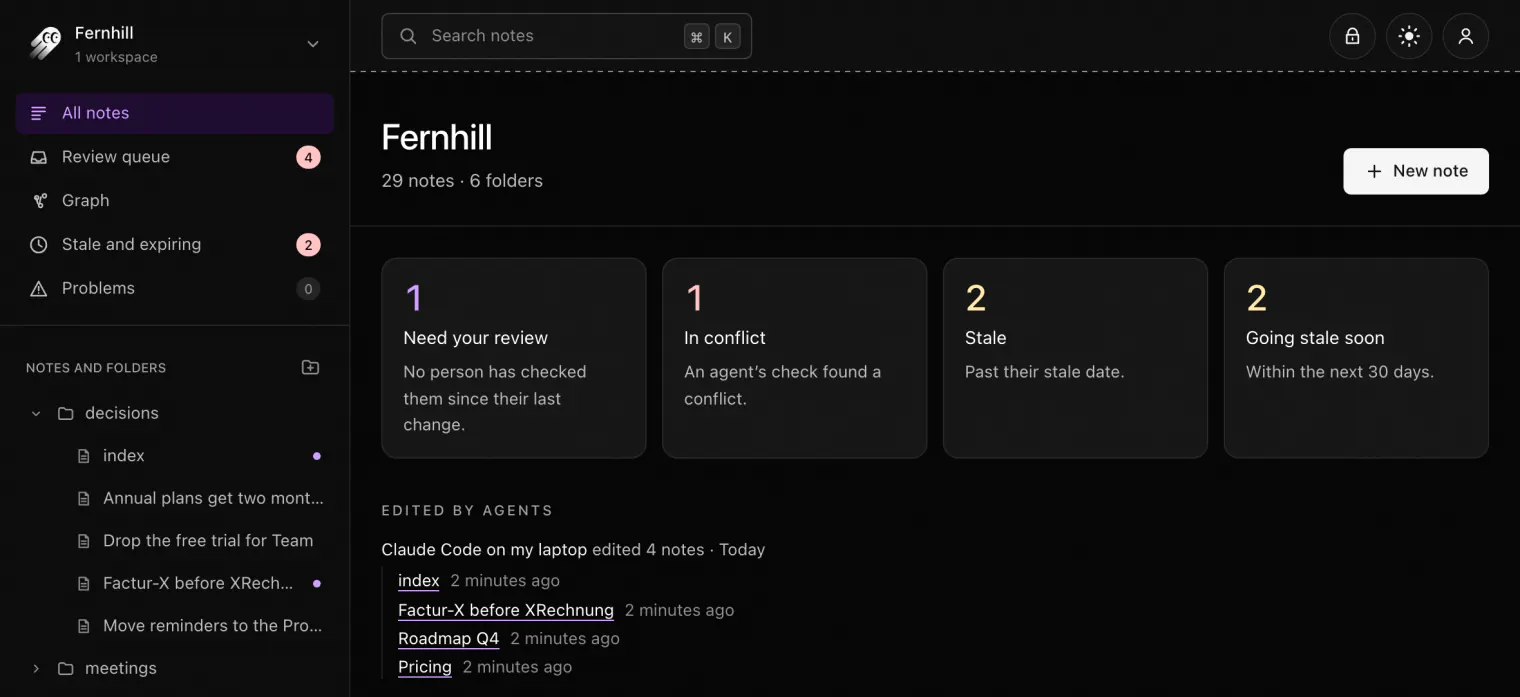
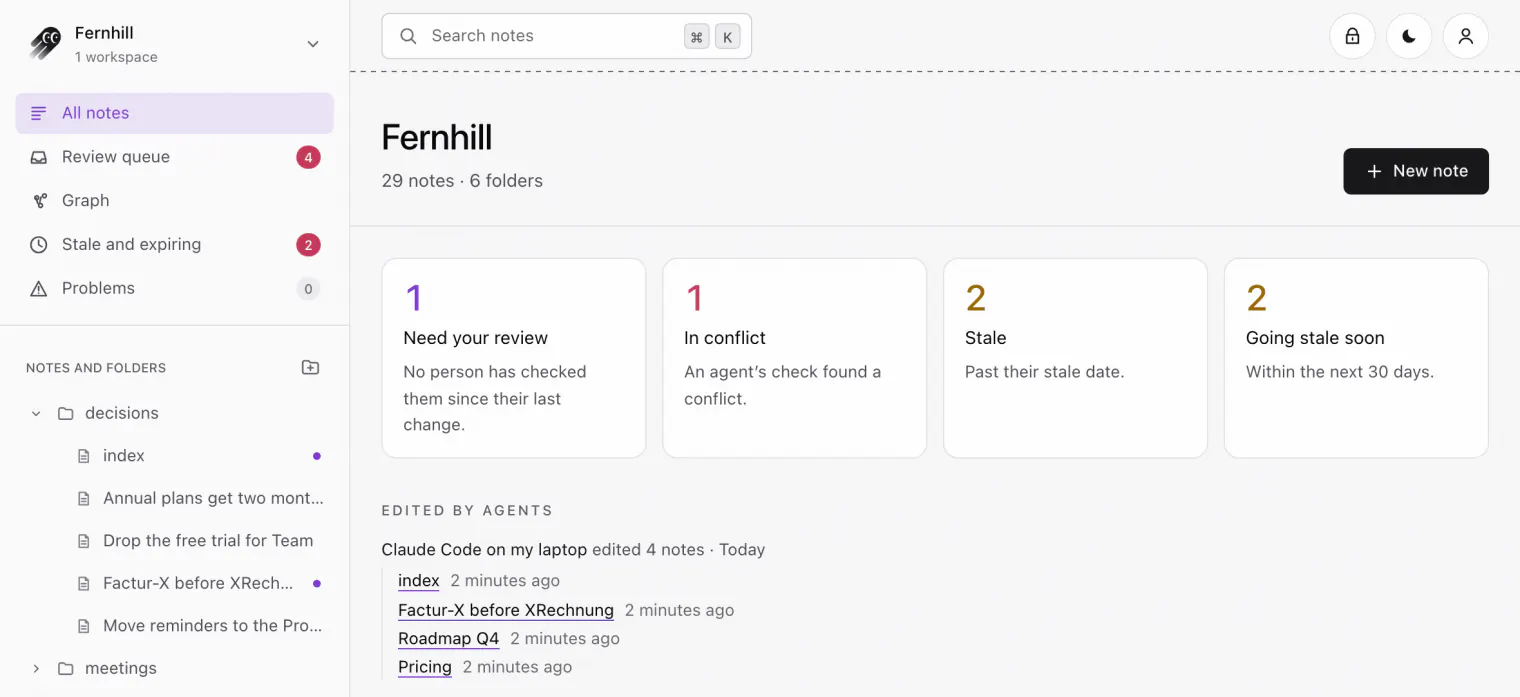
Every change Codex makes is signed with its own key, so you always know which edits were its:
- A dot in the sidebar marks each note it edited until you open it, and the workspace page lists them under Edited by agents.
- Under a note's title, a line says Codex edited it, with See changes for the diff and Undo to bring back the version before.
- Deletes, moves and folder changes are listed on the workspace page for two weeks, or your history period if that's shorter, under Deleted and reorganized by agents, with Undo and Undo this agent's last 24 hours. A deleted note comes back while your history period keeps it.
- The history keeps every version for as long as you set, from a day to a year. In folders with review on, changes wait in the review queue instead.
 (opens full size in a new tab)
 (opens full size in a new tab)
Our guide to reviewing agent edits has a routine for checking what an agent changed before you rely on it.
Troubleshooting
Codex doesn't see Knowtarium
Restart Codex after adding Knowtarium: a session that was already running doesn't pick up new servers. If you used the plugin, check in /plugins that Knowtarium is installed and isn't turned off.
Codex isn't in the list of agents
The CLI finds Codex by its ~/.codex folder (or $CODEX_HOME). If Codex keeps its config somewhere else, set CODEX_HOME in that terminal. To add Knowtarium to Codex either way, run from your home folder (not if you use the plugin).
Codex was skipped
The CLI writes nothing when config.toml isn't valid TOML, or when its MCP servers are written in a form it can't edit safely, and it says which. It also prints an "add it by hand" line with a server entry: ignore it, since an entry you write yourself runs npx in the project folder. Fix the file (or move it aside), then run again.
Check the connection
shows the connected workspaces, their access and changes, the token and the local cache, and says where the keys are kept.
knowtarium says to update
Run from your home folder. It points your agents at the new version. Then restart Codex.
With the plugin, upgrade the marketplace (that only refreshes the listing), then add the plugin again, which installs the new version, and restart Codex:
You have both the plugin and the command's entry
Then the entry in config.toml runs instead of the plugin's server. The CLI keeps it up to date and tells you so. To use the plugin's server, remove the [mcp_servers.knowtarium] table from ~/.codex/config.toml (or in $CODEX_HOME) and restart Codex.
Changes wait for approval when you expected them saved
Codex tells you whether each change was saved or proposed, and why: the folder asks for review, the workspace's settings couldn't be verified, today's limit of direct changes was reached, or this connection can only propose. For the last one, run again from your home folder, then restart Codex.
Don't add it by hand
Use the connect command or the plugin, not a server entry you write yourself or one an MCP registry installs (Knowtarium isn't in the MCP Registry yet). Those run npx inside the project Codex has open, where a project's own files could stand in for Knowtarium's.
Questions
Does OpenAI see my notes?
OpenAI sees what Codex reads, like anything else you give it. Notes are decrypted only on your computer, and Knowtarium's servers hold them only as ciphertext. Connect Codex to only the folders it needs, or read-only, to limit what it can read.
Can I connect ChatGPT in the browser?
Not yet. Connectors for ChatGPT and claude.ai are coming later. Today you can connect Codex, Claude Code, Claude Desktop (with the extension or the command), Cursor, OpenCode and VS Code.
Does Knowtarium work in every Codex project?
Yes. npx knowtarium connect adds Knowtarium to Codex's user config in ~/.codex/config.toml, not to one project, so it's there whichever folder you start Codex in. The server always runs from your home folder, never from the project you have open.
Should I use the plugin or npx knowtarium connect?
Either works and runs the same server. The plugin adds the knowtarium-conventions skill and updates through Codex; the command also sets up any other agents it finds, such as Claude Code or Cursor. Use one: if Codex has both, the command's entry runs instead of the plugin's.
Can Codex delete my notes?
Only if you gave it the permission to delete notes, which is off by default, and it's told to delete only when you asked for it in your conversation. In folders set to Ask me first, a delete waits for your approval. Each delete is listed on the workspace page with Undo, and the note comes back while your history period keeps it.
Is Knowtarium's AGENTS.md the same as Codex's?
No. Codex's AGENTS.md files live in ~/.codex and your repositories and say how to work in a project. Knowtarium's are written in the app for a workspace or folder and say how to write the notes there, for every agent you connect. Codex follows both.